
Record calls on your Mac, with no bot in the call
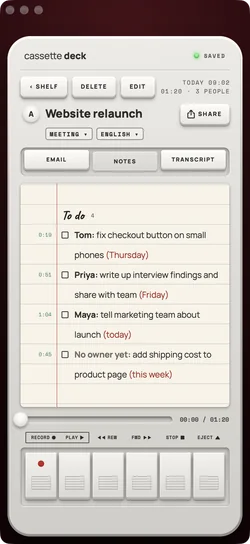
Cassette for Mac records what the Mac plays and your microphone together, so a call on any app is recorded without a bot joining it, and writes the transcript, the notes and the follow-up email when you stop.


No bot joins your call
A meeting bot joins your call as one more guest, with its own name in the list of people. Cassette joins nothing. It records on your Mac, from what the Mac plays and your microphone, so the call looks the same to everyone on it, and it works with any call app because it never connects to one.
MIC and CALL
On a Mac the deck has a MIC and CALL switch where the phone has side A and B. With CALL, Cassette records the call's sound and your microphone, on macOS 15.2 or later, once you allow Screen and System Audio Recording for it. Without that permission it records the microphone.
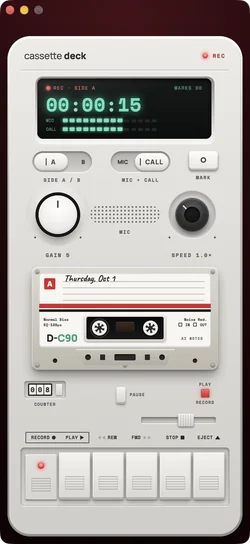
It notices the call
When Zoom, Teams, FaceTime, Webex, Slack, Discord or WhatsApp starts using the microphone, or a browser does for a Meet call, Cassette can say A Zoom call started with RECORD and NOT NOW. Nothing is recorded unless you press RECORD, and you can turn it off in Profile, under After each tape.
Free to download. Recording is free and unlimited, and tapes under 3 minutes get their transcript and notes free.
It knows which lines are yours
On a call tape, the voice your microphone carries is you: your first name if Cassette knows it, or You. The other voices came through the call. So the transcript shows what you said and what the others said, and the notes are written from both.
Made for the Mac
- MARK with the M key while it records.
- Drag a file onto the Shelf, and it becomes a tape with a transcript and notes.
- Remembered voices: name a speaker once, and if you choose REMEMBER, the name is filled in on their next tape. The voice stays on this Mac.
- The follow-up email, drafted for the people on the call.
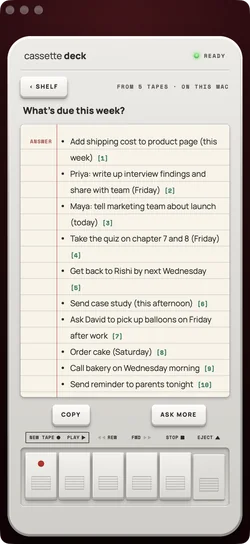
- Ask across your tapes.
- Send to Apple Notes, OneNote, Notion, Evernote or Google Keep, or save a PDF or a Word file.
How to record a call, step by step
- Open Cassette on your Mac and set the switch to CALL.
- The first time, allow Screen and System Audio Recording for Cassette when macOS asks (macOS 15.2 or later).
- Join your call in any app, and press RECORD, or RECORD on the notice Cassette shows when a call starts.
- Tell the others you are recording.
- Press STOP when the call ends: the transcript, the notes and the follow-up email are written.
Why record your calls
On a call you're half listening and half typing, and the typing loses. With the call recorded, you can give the people on it your full attention and still have who said what, the decisions and the next steps afterwards.
No extra gear
No call recorder, no second device on the desk, no service that joins your meetings. The Mac you're already on records the call.
One purchase
Cassette for Mac is on the App Store, macOS 14 or later. One Premium covers iPhone, iPad and Mac.
Before you record
Ask first. Whoever you are recording should know about it, some places require everyone's consent, and it is the decent thing to do.
Questions
Does it work with Zoom, Google Meet and Teams?
It records what the Mac plays, so it doesn't depend on the call app. Nothing joins the call.
Will the people on the call see Cassette?
No. Nothing joins the call, so no extra name shows in the list of people. Tell them you are recording all the same: some places require everyone's consent.
Who writes the notes on a Mac?
Apple's own models, on the device or with Private Cloud Compute, never an outside AI service.
Keep reading
- Sales callsClient call notes.
- MeetingsIn the room and on calls.
Free to download. Recording is free and unlimited, and tapes under 3 minutes get their transcript and notes free.