
How to speed up or slow down a voice memo
Written by the team that builds Cassette, so we are not neutral about it. Updated 14 November 2026.
On iPhone, open the recording in Voice Memos, tap the More button, tap Options and drag the speed slider toward the rabbit to play faster or the tortoise to play slower. It changes only how the memo plays, not the recording, and Voice Memos keeps that speed for that memo. On Android, the recorder app depends on your phone's maker, so open a recording and look in its menu for a speed setting. In Cassette, on iPhone and Android, turn the SPEED knob on the deck anywhere from 0.5x to 2.0x and press PLAY.


Why change the speed
- Faster gets you through a long lecture, meeting or voice note in less time. Many people find speech still easy to follow a little above normal speed.
- Slower helps you catch a name, a number or a word you missed, or follow someone who talks fast or in a language you are learning.
Start a little faster or slower than normal and adjust from there. The right speed depends on the speaker and on how closely you need to listen.
On iPhone: Voice Memos
Voice Memos, the recorder that came with your iPhone, has its own speed slider. Apple's steps:
- Open Voice Memos. It may be in the Utilities folder.
- Tap the recording you want to play, tap the More button, then tap Options.
- Drag the slider toward the tortoise for slower, or toward the rabbit for faster.
- Tap Done, then tap Play.
Changing the speed doesn't change the recording itself. Voice Memos keeps the speed you chose with that one memo and uses it each time you play it, without changing your other memos. To go back to normal, open Options again and tap Reset, which also turns off the other playback options for that memo.
In the same Options you can also turn on Skip Silence, which jumps over the gaps in a recording. Together with a faster speed it can shorten a long memo a lot.
On a Mac: Voice Memos
Select the recording in Voice Memos, click the Playback Settings button and drag the Playback Speed slider left or right. Click Done, then Play. Apple says these settings carry over between your devices on macOS 26, iOS 26 or later when you are signed in to the same Apple Account.
On Android: your phone's recorder
Android phones come with different recorder apps depending on the maker, such as Recorder on Pixel phones and Voice Recorder on Samsung Galaxy phones. Google's and Samsung's own help pages for these apps explain recording, playing and sharing, but neither page describes a playback speed setting.
So check on your phone: open a recording, start it playing and look on the playback screen and in its menu for a speed option. Menus and features change from model to model and between app versions.
In Cassette: the SPEED knob
Cassette looks like a tape deck, and its deck has a SPEED knob next to the microphone grille. It is the same on iPhone and Android.
- Turn SPEED. Drag the knob to turn it. It goes from 0.5x to 2.0x, clicks at every 0.1x, and shows the speed under it.
- Press PLAY. The tape opens and plays at that speed.
- Change it while you listen. Tap cassette deck at the top of the screen to go back to the deck while the tape keeps playing, then turn the knob. The tape speeds up or slows down as it plays.
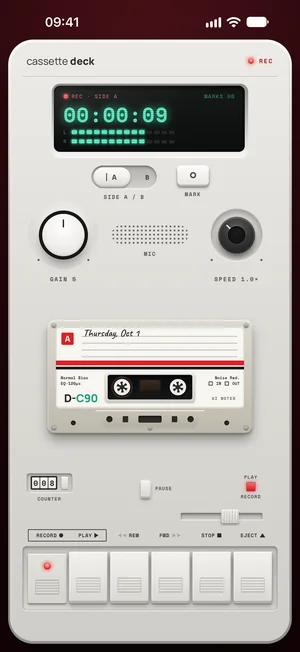
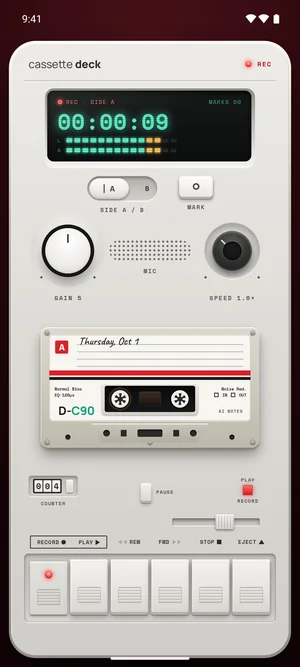
SPEED changes only how a tape plays. The recording itself stays as it was. It applies to every tape you play, and it goes back to 1.0x each time Cassette starts, so you never open the app to a tape playing at a speed you forgot about.
Free to download. Recording is free and unlimited, and tapes under 3 minutes get their transcript and notes free.
Skip the listening when you can
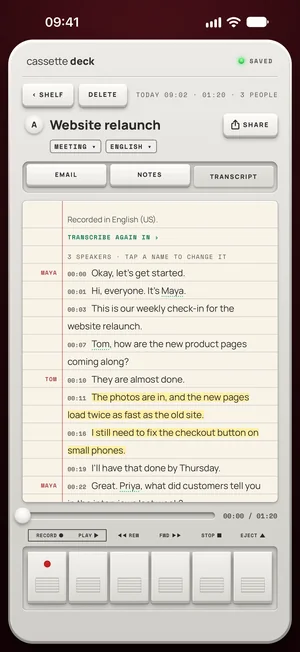
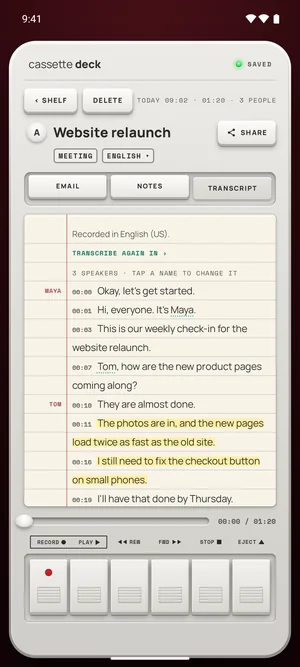
Speeding up is one way to get through a recording. Another is not to listen to most of it. When you press STOP, Cassette writes a transcript, so you can read instead of listening.
- Find the moment. Tap a line of the transcript to jump to it, then press PLAY to hear how it was said, at whatever speed you set.
- Mark while you record. Tap MARK when something matters, and each mark holds that moment on the tape, so you can go straight back to it.
- Read the notes. Cassette also writes notes, such as a summary and to-dos. On an iPhone without Apple Intelligence or on a version before iOS 26, or an Android phone with less than 8 GB of memory, you get the recording, the transcript and a few lines heard clearly instead.
Already have a recording from Voice Memos? On iPhone, iPad and Mac, Cassette can bring in an audio file you already have: share it to Cassette on iPhone or iPad, press ADD FILE on the Shelf, or drag it onto the Shelf on a Mac (a long recording dragged from Voice Memos on a Mac has to go to the Desktop first). It becomes a tape you can play with the SPEED knob, with a transcript and notes under the same free tape rule, and the original file isn't changed.
Before you record
Ask first. Whoever you are recording should know about it, some places require everyone's consent, and it is the decent thing to do.
Questions
Does speeding up a voice memo change the recording?
No. In Voice Memos, Apple says changing the playback speed doesn't affect the recording itself. In Cassette, the SPEED knob changes only playback too.
Why does my voice memo play at a different speed than the others?
In Voice Memos on iPhone, the speed you choose stays with that one recording. Open the memo, tap the More button, tap Options and move the slider back, or tap Reset.
How fast can Cassette play a tape?
From half speed, 0.5x, up to double speed, 2.0x, on iPhone and Android. The knob clicks at every 0.1x. It starts at 1.0x each time you open the app.
Is it free?
Recording is free and unlimited. A tape shorter than 3 minutes gets its transcript and notes free. Longer tapes count toward the 2 free tapes a month, and Premium covers every tape after that.
Keep reading
- All featuresWhere this fits in Cassette.
- How to transcribe voice memos to text on iPhone or AndroidTurn a voice memo into text with the tools already on your phone. Steps for iPhone, Mac, Pixel and Samsung, and how Cassette adds a to-do list.
- Which voice recorder app should you use?Do you need a voice recorder app at all? What the free recorder on your iPhone or Android already does, what to check in another one, and where Cassette fits.
- How to record lectures on iPhone, Android, iPad or MacThe best way to record lectures on a phone, iPad or laptop, and get notes you can study from. Steps with the free built-in apps and with Cassette.
Sources
- Apple Support: Play a recording in Voice Memos on iPhone: https://support.apple.com/guide/iphone/play-it-back-iphebbd067ce/ios
- Apple Support: Play a recording in Voice Memos on Mac: https://support.apple.com/guide/voice-memos/play-a-recording-vma2c8c0a040/mac
- Google Pixel Help: Create, edit & delete a recording on your Pixel device: https://support.google.com/pixelphone/answer/16267367
- Samsung Support: How to record, play back, and share voice recordings on your Samsung Galaxy phone: https://www.samsung.com/sg/support/mobile-devices/how-to-record-play-back-and-share-voice-recordings-on-your-samsung-galaxy-phone/
Free to download. Recording is free and unlimited, and tapes under 3 minutes get their transcript and notes free.