
How to record lectures on iPhone, Android, iPad or Mac
Written by the team that builds Cassette, so we are not neutral about it. Updated 20 November 2026.
Ask your professor first, sit near the front, lay your phone flat with its bottom edge toward the speaker, and press record. The recorder that came with your phone or laptop gets you the audio for free: Voice Memos on iPhone, iPad and Mac, your phone maker's recorder on Android, Sound Recorder on Windows. To get notes as well, use an app that writes them: in Cassette you press RECORD, tap MARK at the parts that matter and press STOP, and the outline, key terms and what is on the exam are written for you.


Before class: get a recording you can use
The best way to record lectures comes down to a few small things you do before the professor starts. They matter more than which app you use.
- Ask first. Check the syllabus or ask after class. Schools and professors have their own rules about recording.
- Sit close. Distance hurts a recording more than anything else. A few rows from the front beats the back of the room.
- Lay the phone flat, bottom edge toward the speaker. The main microphone on most phones is on that edge. Keep it off a desk you will be typing or tapping on. On a laptop, keep the keyboard quiet or the clicks end up on the recording.
- Silence it. Turn on Do Not Disturb so buzzes don't end up on the tape.
- Check battery and storage. A long class is a poor time to find out either one is low.
Record with the app your phone or laptop came with
If you only want to listen again later, you may not need anything new.
On iPhone, open Voice Memos, which may be in the Utilities folder, and tap the red button. Tap it again when class ends. On iPhone 12 or later you can also view a transcript in the languages Apple supports.
On Android, look for the recorder app from your phone's maker. The name and features change from brand to brand, so open it and check whether it does more than save the audio.
On a Mac, Voice Memos is there too. Apple's page on making a recording on Mac says it records with the built-in microphone, a headset or an external mic. Click Record to start.
On a Windows laptop, open Sound Recorder from Start. Microsoft says each recording can run up to three hours, and you can keep working in other apps while it records.
Either way you end up with a long recording. Finding the ten minutes that mattered still means listening through it, and writing the notes is still your job.
Record with Cassette and get the notes too
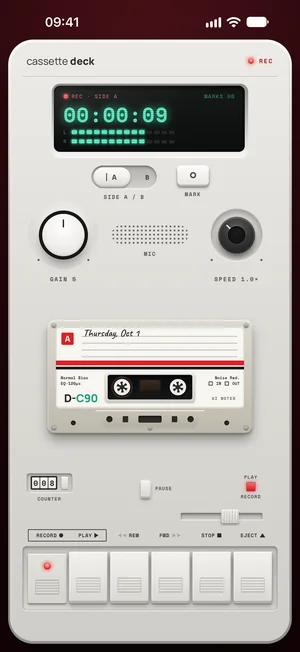
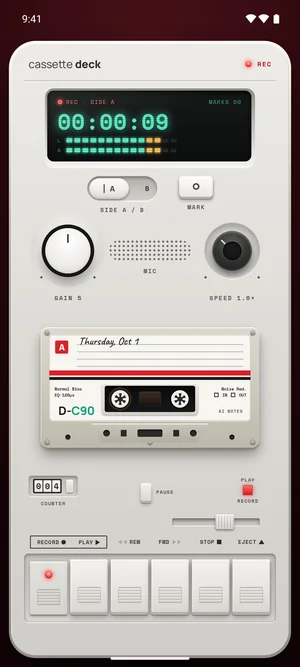
Cassette looks like a tape deck, and it works like one. It runs on iPhone and Android, and the steps are the same on both.
- Press RECORD. The tape keeps rolling when your screen locks, so you can put the phone down and listen.
- Tap MARK when something matters, like when the professor says it will be on the exam. Each mark holds that moment on the tape.
- Press STOP. Cassette writes the transcript, then the notes.
Free to download. Recording is free and unlimited, and students at a college or university pay $24.99 a year for Premium ($0.48 a week) with a school email.
On an iPad or a Mac, or with a recording you already have
On an iPad, Cassette has the same deck as on iPhone: press RECORD, tap MARK, press STOP. An iPad flat on the desk records a lecture as well as a phone does, if it is close to the speaker.
On a Mac, slide the switch on the deck to MIC, so Cassette records the room through the Mac's microphone only, and press RECORD. It starts on CALL, since a Mac tape is usually a call. The CALL side is for a class you join over Zoom or Teams: it records what the Mac plays together with your microphone. Our guide to recording a Zoom meeting on a Mac has those steps.
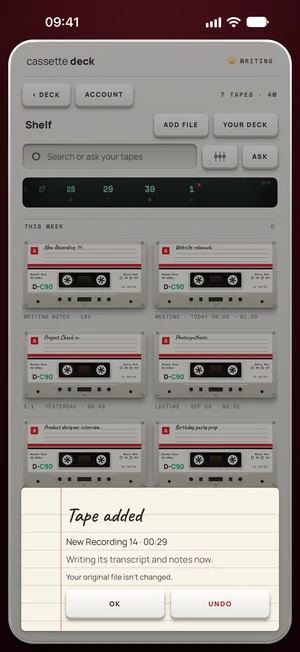
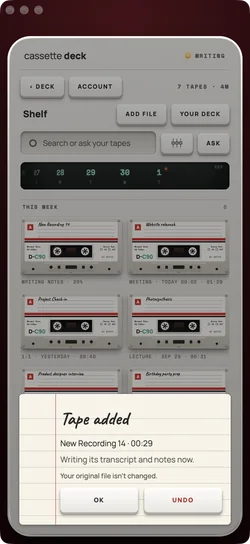
Recorded the class in another app? On iPhone, iPad and Mac, Cassette can bring in the file. Share it to Cassette on iPhone or iPad, press ADD FILE on the Shelf, or drag it onto the Shelf on a Mac. It becomes a tape with a transcript and notes, under the same free tape rule, and the original file isn't changed. Cassette reads M4A, MP3, WAV, AAC, FLAC, Opus and the sound in MP4. On a Mac, drag a long recording from Voice Memos to the Desktop first, then onto the Shelf.
What you get when you press STOP
Cassette picks the kind of notes from what it hears (on Android, on phones with Cassette's notes model). For a class in English it writes:
- A short summary of the class.
- What is due, with the day, when the professor says one.
- An outline of what was covered, with times.
- The key terms and what they mean.
- What was said to be on the exam, in its own section, in the professor's words.
- Examples and the questions the class asked.
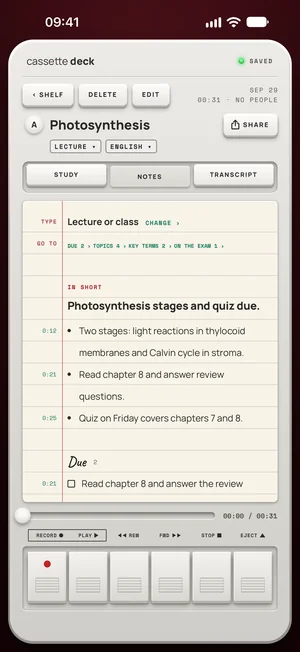
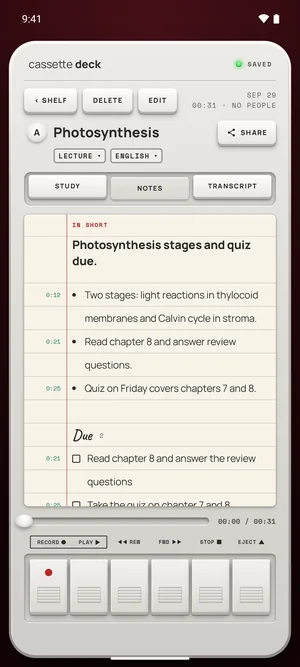
If it guessed wrong, for example a seminar it took for a meeting, tap CHANGE beside Type at the top of the notes, choose Lecture or class, and the notes are written again. This lecture layout is for tapes in English. A class in another language still gets its transcript and general notes, without the outline and exam sections.
On Android, picking the type for you and changing it need a phone with 8 GB of memory or more, once Cassette's notes model is on it.
On an iPhone or iPad without Apple Intelligence or on a version before 26, or an Android phone with less than 8 GB of memory, you get the recording, the transcript and a few lines heard clearly. A class in English gets no summary there. A class in another language gets a short summary and key points. There is no outline, terms or review cards on those devices.
Turn the notes into study time
- Go back to the moment. Tap a line of the transcript to go to that moment on the tape, then press PLAY to hear how it was said.
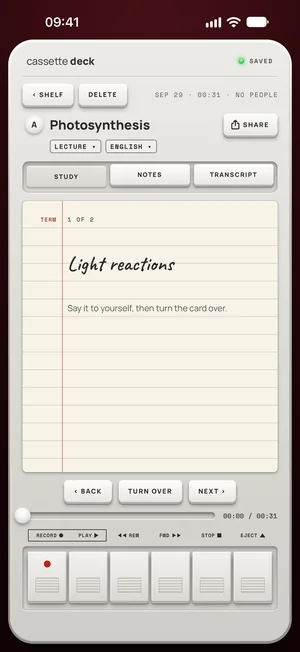
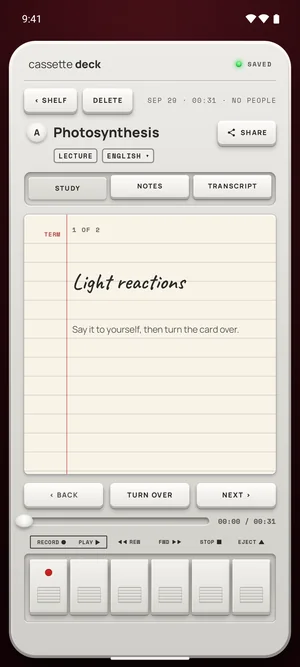
- Review with cards. Cassette makes review cards from the key terms, so you can test yourself without writing them.
- Keep them with your other notes. Send the notes to Notion, OneNote, Evernote or Google Keep, to Apple Notes on iPhone, iPad and Mac, or to Samsung Notes on a Samsung phone.
- Ask your tapes. On a phone that writes full notes, type a question like "what's due this week?" and get an answer from your own recordings.
Before you record
Ask first. Whoever you are recording should know about it, some places require everyone's consent, and it is the decent thing to do.
Questions
What is the best way to record lectures?
Sit close to the speaker, put the phone flat on the desk with its bottom edge toward them, and silence it. Distance matters more than the app. Then use the free recorder on your phone if you only want to listen again, or an app like Cassette if you want the transcript and notes written for you.
Can I record a lecture on a laptop?
Yes. Voice Memos records on a Mac and Sound Recorder on Windows, both for free. Cassette for Mac records the room with its switch slid to MIC, and writes the transcript after you press STOP. A Mac with Apple Intelligence on macOS 26 or later writes the notes too.
Can I record a lecture with my phone locked?
Yes. Cassette keeps recording when the screen locks, on iPhone and on Android.
Does it work without Wi-Fi?
Yes. Recording works in airplane mode, which helps in a basement lecture hall. On iPhone, the transcript is written on the device in the languages it supports there, once that language's speech model is downloaded; otherwise Apple's servers write it. On Android, the notes model arrives over Wi-Fi once after you install, on a phone with 8 GB of memory or more, so open Cassette on Wi-Fi before class.
Can I keep the recording private?
On Android, the audio only leaves the phone if you sign in with Premium, which backs tapes up. On iPhone there are more cases: Apple's servers transcribe a tape the phone can't do on the device, the notes can be written on Apple's Private Cloud Compute on iOS 27, and tapes go in iCloud and computer backups and in your Premium backup. To stop all of that, turn on On-device only in your Cassette profile.
Is Cassette free for lectures?
Recording is free and unlimited. A lecture usually runs longer than 3 minutes, so its transcript and notes count toward the 2 free tapes a month, and Premium covers every tape after that. Students at a college or university pay $24.99 a year for Premium ($0.48 a week) with a school email.
Keep reading
- Lecture notes for studentsWhere this fits in Cassette.
- How to choose a lecture recording appHow to pick an app to record lectures and take notes: what the free built-in apps do, eight things that matter for a class, and how Cassette does.
- How to turn audio into textTurn an audio file into text: Word's Transcribe for MP3, M4A and WAV files, or Cassette on iPhone, iPad and Mac for a transcript and notes.
- How to transcribe voice memos to text on iPhone or AndroidTurn a voice memo into text with the tools already on your phone. Steps for iPhone, Mac, Pixel and Samsung, and how Cassette adds a to-do list.
- How to speed up or slow down a voice memoPlay a voice recording faster or slower: the speed slider in Voice Memos on iPhone and Mac, what to check on Android, and the SPEED knob in Cassette.
- How to start recording with one press of the Action buttonSet the iPhone Action button to start a recording with one press: with Voice Memos, or with Cassette to get a transcript and notes as well.
Sources
- Apple Support: View a Voice Memos transcription on iPhone: https://support.apple.com/guide/iphone/view-a-transcription-iph00953a982/ios
- Apple Support: Create a recording on Mac (Voice Memos): https://support.apple.com/guide/voice-memos/create-a-recording-vmaa4b813415/mac
- Microsoft Support: Sound Recorder app for Windows FAQ: https://support.microsoft.com/en-us/windows/apps/sound-recorder-app-for-windows-faq
Free to download. Recording is free and unlimited, and students at a college or university pay $24.99 a year for Premium ($0.48 a week) with a school email.