
How to start recording with one press of the Action button
Written by the team that builds Cassette, so we are not neutral about it. Updated 13 November 2026.
On iPhone models with an Action button, one press can start a recording. Go to Settings, tap Action Button and swipe to Voice Memo to record with Apple's Voice Memos. For a transcript and notes as well, swipe to Controls instead and choose Cassette's Record. Then press and hold the Action button to start a tape, and press and hold it again to stop.


Which iPhones have an Action button
The Action button is the small button on the left edge, above the volume buttons, where older iPhones have the Ring/Silent switch. Apple lists it on iPhone 15 Pro and 15 Pro Max, iPhone 16e and 17e, and iPhone 16 and later. Out of the box it turns Silent mode on and off, but you can give it another job in Settings.
It works with a press and hold, not a quick click. Apple's words: to perform the action assigned to the Action button, press and hold it. That's what stops it going off in your pocket.
Record with Voice Memos, the app already on your iPhone
If you only want to save what was said, Apple's own recorder is one of the choices:
- Open the Settings app and tap Action Button.
- Swipe until Voice Memo shows under the dots.
- Leave Settings. Press and hold the Action button to start recording.
The recording goes into the Voice Memos app. To get the words, open it there and look for the transcript, on the iPhones and languages Apple lists. Our voice memo guide has the steps, and how to turn a memo into notes.
Choose Cassette's Record for the Action button
Cassette is a tape deck for iPhone that writes a transcript and notes from what it records: a short summary, to-dos with names and dates, and the decisions. Its Record control goes on the Action button, so one press starts a tape without opening the app. Controls need iOS 18 or later.
- Open Cassette once, answer the first question it shows, and press RECORD. Allow what it asks for (the microphone, and speech recognition for the transcript), then stop the tape.
- Open the Settings app and tap Action Button. You see the side of the iPhone with a large button in the middle.
- Swipe left or right on the button until Controls shows under the dots.
- Tap Choose a Control under it. A list of controls opens, grouped by app.
- Scroll to Cassette, or type Cassette in Search Controls, and tap Record.
- Back on the Action Button page, it reads Controls with Record under it. That's it: leave Settings.
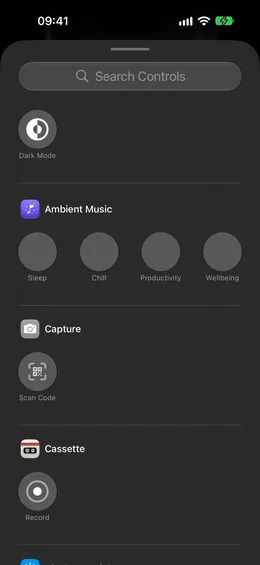
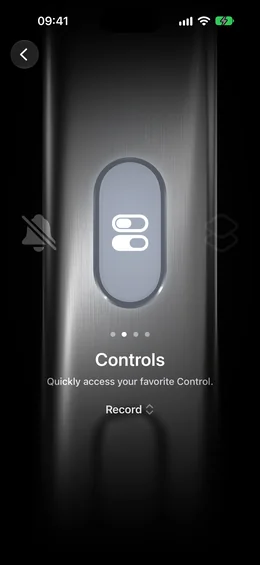
To change it later, go back to Settings, Action Button, and tap Record under Controls to pick another control, or swipe to another action.
Record with it: start, mark and stop a tape
- Start: press and hold the Action button. A tape starts and Cassette stays closed. REC and the running time show on the Lock Screen, and in the Dynamic Island on iPhones that have one.
- If iPhone asks whether to allow Live Activities from Cassette, tap Allow, so the tape stays in sight while it runs.
- While it records: lock the phone or use other apps; the tape keeps going and shows on the Lock Screen. On iPhones with the Dynamic Island, touch and hold the REC at the top to see PAUSE and MARK. Press MARK when something is said that you'll want to find later.
- Stop: press and hold the Action button again. The tape ends, the same as pressing STOP on the deck, and Cassette writes the transcript and the notes. Open Cassette to read them.
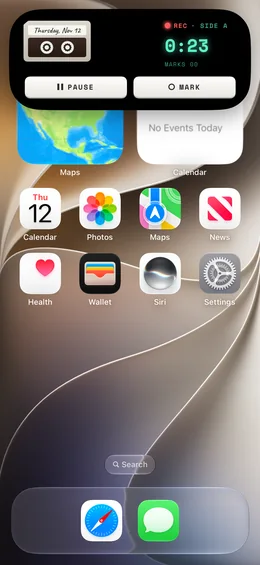
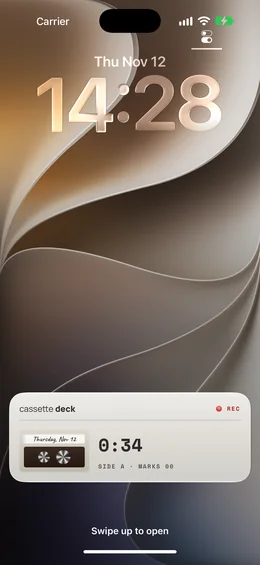
Full notes need Apple Intelligence on iOS 26 or later. On other iPhones you still get the recording, the transcript and a few lines heard clearly, without the full notes. Recording is free, and a tape under 3 minutes gets its transcript and notes free, on top of 2 free tapes a month.
Free to download. Recording is free and unlimited, and tapes under 3 minutes get their transcript and notes free.
No Action button? Put Record in Control Center or on the Lock Screen
The same Record control works in two other places, on any iPhone with iOS 18 or later. Each is one tap: tap to start a tape, and tap again to stop.
- Control Center: swipe down from the top right corner, tap the Add button at the top left, then Add a Control, and search for Cassette. Apple's steps show how to move it once it's there.
- Lock Screen: touch and hold the Lock Screen, tap Customize, then swap one of the two controls at the bottom for Cassette's Record.
If the button doesn't start a tape
- Nothing happens: check Settings, Action Button. Controls must have Cassette's Record picked under it, or the button does nothing.
- Cassette opens, or no tape starts: open Cassette and record one tape from the deck, allowing the microphone and speech recognition when it asks. If you said no before, turn the microphone on in Settings, Privacy & Security, Microphone.
- Silent mode turns on: the button is still on its first job. Swipe to Controls in Settings, Action Button.
- No Controls in the list: your iPhone needs iOS 18 or later. Update it in Settings, General, Software Update.
Before you record
Ask first. Whoever you are recording should know about it, some places require everyone's consent, and it is the decent thing to do.
Questions
Can the Action button start a voice recording?
Yes. Set it to Voice Memo to record with Apple's Voice Memos, or set it to Controls and choose Cassette's Record to get a transcript and notes as well. Then press and hold the button.
Does Cassette open when I press the Action button?
No. Once you have recorded one tape in Cassette and allowed the microphone and speech recognition, the tape starts with the app closed and shows on the Lock Screen while it runs.
How do I stop the recording?
Press and hold the Action button again. You can also open Cassette and press STOP.
Which iPhones have the Action button?
Apple lists iPhone 15 Pro and 15 Pro Max, iPhone 16e and 17e, and iPhone 16 and later. On other iPhones, put Cassette's Record in Control Center or on the Lock Screen.
Keep reading
- One-press recordingWhere this fits in Cassette.
- Which voice recorder app should you use?Do you need a voice recorder app at all? What the free recorder on your iPhone or Android already does, what to check in another one, and where Cassette fits.
- How to transcribe voice memos to text on iPhone or AndroidTurn a voice memo into text with the tools already on your phone. Steps for iPhone, Mac, Pixel and Samsung, and how Cassette adds a to-do list.
- How to use your Apple Watch as a voice recorderRecord your voice on Apple Watch with Voice Memos and find the recording on iPhone, or record in Cassette to get a transcript and notes.
- How to record lectures on iPhone, Android, iPad or MacThe best way to record lectures on a phone, iPad or laptop, and get notes you can study from. Steps with the free built-in apps and with Cassette.
Sources
- Apple Support: Use and customize the Action button on iPhone: https://support.apple.com/guide/iphone/use-and-customize-the-action-button-iphe89d61d66/ios
- Apple Support: Use the volume buttons, side button, and other controls on your iPhone: https://support.apple.com/en-us/105103
- Apple Support: Use and customize Control Center on iPhone: https://support.apple.com/guide/iphone/use-and-customize-control-center-iph59095ec58/ios
Free to download. Recording is free and unlimited, and tapes under 3 minutes get their transcript and notes free.