
How to record a Zoom meeting on a Mac, with audio
Written by the team that builds Cassette, so we are not neutral about it. Updated 15 November 2026.
If you are the host, or the host lets you, click Record in the Zoom app and choose Record on this Computer. Zoom saves a video and an audio file when the meeting ends. If you can't use Zoom's button, or you want notes as well as the file, record on your own Mac: in Cassette, set the deck's switch to CALL and press RECORD. It records what your Mac plays, which is everyone on the call, together with your microphone, and nothing joins the meeting. When you press STOP it writes the transcript and the notes.


Record with Zoom's own Record button
The Zoom app for Mac can record a meeting to your computer, on a free account too. Zoom's help page on starting a computer recording sets out the steps:
- Start or join the meeting in the Zoom app for Mac.
- Click Record in the meeting controls. If a menu opens, choose Record on this Computer.
- End the meeting. Zoom converts the recording and opens its folder when it's done: an MP4 with the video and an M4A with the audio only.
There is one catch. Only the host can record unless the host allows it. If you are a guest, the host has to choose Allow Record next to your name. Zoom also asks the people in the meeting to agree to being recorded.
Leave your Mac open and awake until the conversion finishes. Zoom warns that closing the laptop or shutting down during it can leave the files damaged.
Record with the Mac's screen recorder
The Mac has a screen recorder built in. Press Shift-Command-5, choose to record the whole screen or part of it, open Options to pick a microphone, then click Record. Stop it from the menu bar. Apple's page on recording the screen on Mac covers the steps. QuickTime Player can also record the screen, from File > New Screen Recording.
For a call, mind the sound. The microphone records your voice. It hears the other people only as far as your speakers carry them, and not at all through headphones. Apple says the Include System Audio option, which records what the Mac plays, needs macOS 27 or later. You also end up with a video file, and the notes are still your job.
Record the call with Cassette and get notes
Cassette looks like a tape deck. On a Mac the deck has a switch marked MIC and CALL. With CALL, Cassette records what your Mac plays, which is the people on the Zoom call, together with your microphone. No bot joins the meeting and the host doesn't have to allow anything in Zoom, because Cassette never connects to Zoom. It hears the call the way you do. It works the same for Google Meet, Microsoft Teams, FaceTime or any other call app.
- Open Cassette on your Mac and check the switch is on CALL. It is when you first install it.
- The first time, allow Cassette when macOS asks for Screen and System Audio Recording. This needs macOS 15.2 or later. Cassette keeps no picture of your screen, only the sound.
- Join the Zoom call and press RECORD. Or wait for the notice: when Zoom starts using the microphone, Cassette can say A Zoom call started, with Record and Not now. Clicking Record or the notice itself starts the tape. Not now records nothing.
- Tell the others you are recording. Zoom doesn't know Cassette is recording, so it won't tell them for you.
- Press M or tap MARK when something matters, so you can find that moment later.
- Press STOP when the call ends. Cassette writes the transcript and the notes with Apple's own models, never an outside AI service.
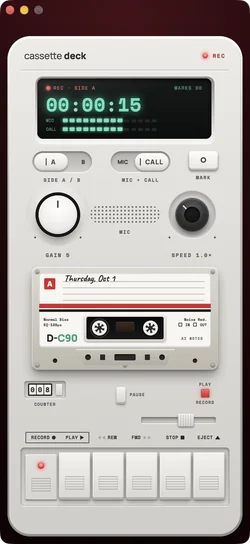
If macOS hasn't allowed Cassette to record the call's sound, Cassette says Recording your mic only and records your microphone, with a button that opens the right place in System Settings.
Free to download. Recording is free and unlimited, and tapes under 3 minutes get their transcript and notes free.
What you get when you press STOP
Open the tape and you have the recording, a transcript with a time on every line, and the meeting notes: a summary, what was decided, and the to-dos with who does them and when. Cassette also fills in a follow-up email for you to send.
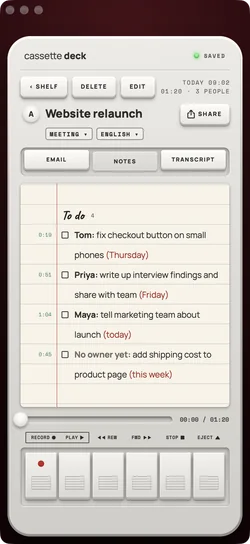
- Go back to the moment. Tap a line of the transcript to jump to it, then press PLAY.
- Keep it with your other notes. Send the notes to Apple Notes, OneNote, Notion, Evernote or Google Keep, or save them as a PDF or a Word file.
- Ask your tapes. Type a question like "what did we agree on pricing?" and get an answer from your own recordings.
These notes need Apple Intelligence. A Mac without it, or on a version before macOS 26, gets the recording, the transcript and simpler notes written on the Mac instead.
Already recorded it in Zoom? Get notes from the file
If the host recorded the meeting, or you did with Zoom's button, you don't have to record it again. Drag the M4A or MP4 file onto the Shelf in Cassette, or press ADD FILE. It becomes a tape with a transcript and notes, and Zoom's file isn't changed. Cassette reads M4A, MP3, WAV, AAC, FLAC, Opus and the sound in MP4.
Before you record
Ask first. Whoever you are recording should know about it, some places require everyone's consent, and it is the decent thing to do.
Questions
Can I record a Zoom meeting on a Mac if I'm not the host?
With Zoom's own button, only if the host allows it. Cassette records on your Mac without connecting to Zoom, so it needs no permission from the host. Tell the others you are recording.
Why does my Mac screen recording have no sound from the call?
The screen recorder records a microphone. Recording what the Mac plays, the other people on the call, needs the Include System Audio option, which Apple says needs macOS 27 or later. Cassette's CALL switch records it on macOS 15.2 or later.
What if I never allowed Screen and System Audio Recording?
Cassette records your microphone only and says so, with a button that opens the right place in System Settings: Privacy & Security, then Screen & System Audio Recording.
Can I stop Cassette offering to record calls?
Yes. Turn off Offer to record calls in your Cassette profile, under After each tape.
Is it free?
Recording is free and unlimited. A call of 3 minutes or more counts toward the 2 free tapes a month for its transcript and notes, and Premium covers every tape after that.
Keep reading
- All featuresWhere this fits in Cassette.
- How to record and transcribe a meeting, with no bot in the callRecord and transcribe a meeting on iPhone, Android or Mac, in a room or on a call: what Zoom, Teams and Meet do, and how Cassette does it with no bot.
- How to take notes in a meeting using AIUse AI to take meeting notes on Zoom, Teams, Google Meet or in a room: what to set up, what to say out loud, and how to check the notes afterwards.
- How to choose a meeting notes appHow to pick a meeting notes app: what your phone and your call app already do, eight things that matter for meetings, and how Cassette does.
- An interview transcription app that writes the notes tooRecord an interview on your phone and get a transcript plus notes with each question and answer, quotes and follow-ups. Built-in apps and Cassette.
- How to transcribe voice memos to text on iPhone or AndroidTurn a voice memo into text with the tools already on your phone. Steps for iPhone, Mac, Pixel and Samsung, and how Cassette adds a to-do list.
Sources
- Zoom Support: Starting a computer recording: https://support.zoom.com/hc/en/article?id=zm_kb&sysparm_article=KB0076922
- Zoom Support: Providing consent to be recorded: https://support.zoom.com/hc/en/article?id=zm_kb&sysparm_article=KB0059819
- Apple Support: How to record the screen on Mac: https://support.apple.com/en-us/102618
Free to download. Recording is free and unlimited, and tapes under 3 minutes get their transcript and notes free.