
How to record and transcribe a meeting, with no bot in the call
Written by the team that builds Cassette, so we are not neutral about it. Updated 19 November 2026.
If the whole meeting is on Zoom, Microsoft Teams or Google Meet, check your plan first: each can write a transcript on its own, on the plans and settings its maker lists. For a meeting around a table, a call on a different app each time, or one where you'd rather nothing joined, your phone is enough to record and transcribe it. Cassette does that on iPhone and Android: press RECORD, press STOP, and the transcript is written with a time on every line, so you can tap any line to go to that moment and press PLAY. On a Mac it can record the call itself, and on iPhone, iPad and Mac it can also transcribe a recording you already have.


If the meeting is on a call app, check its own transcript
The call app you already use may write the transcript for you. Each one has its own rules, set out on its help pages.
- Zoom. Audio transcription works on cloud recordings, on Pro, Business, Education and Enterprise accounts, with cloud recording and audio transcripts turned on. Lines carry the speaker's name, and you can edit them on the web.
- Microsoft Teams. Live transcription is started from More actions, then Transcribe, in the meeting controls in Teams for desktop. It also starts when you record the meeting. Afterwards the transcript is in the meeting's Recap, and by default the organizer and co-organizers can download it.
- Google Meet. Transcripts are on certain Google Workspace editions. They are saved in the organizer's Google Drive, in the Google Meet folder, and a link is emailed to the organizer after the meeting.
These work well when every meeting is on the same app and your plan includes them. They don't help with a meeting in a room, and someone has to remember to turn them on each time.
Record and transcribe a meeting in the room with Cassette
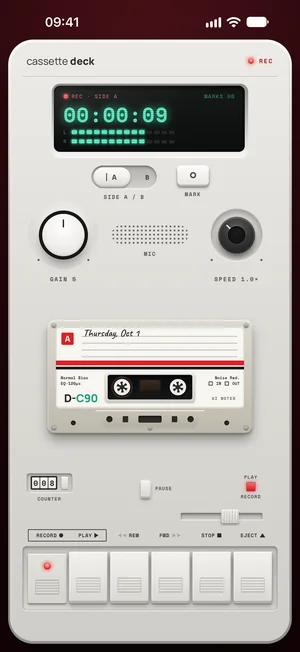
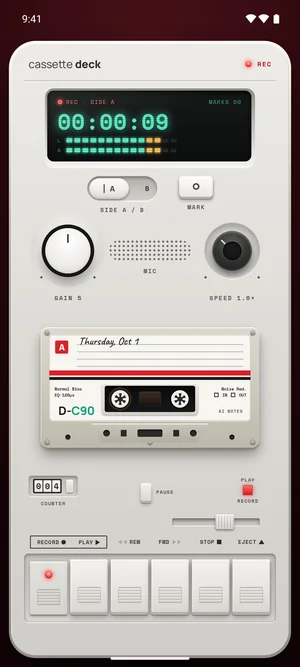
Cassette looks like a tape deck and runs on iPhone and Android. It records through your phone's microphone, so nothing joins a call and nobody gets an invite. You don't need a separate recording device: a phone in the middle of the table hears a small meeting well.
- Put the phone in the middle of the table and press RECORD. You can lock the screen: the tape keeps going.
- Tap MARK when something important is said, so you can find that moment later.
- Press STOP when the meeting ends. Cassette writes the transcript, then the meeting notes.
Free to download. Recording is free and unlimited, and tapes under 3 minutes get their transcript and notes free.
The notes need a device that can write them. An iPhone without Apple Intelligence or on a version before iOS 26, or an Android phone with less than 8 GB of memory, gets the recording, the transcript and a few lines heard clearly. A tape in English gets no summary or actions there. A tape in another language gets a short summary and key points. The transcript and the recording are there either way.
What the transcript looks like
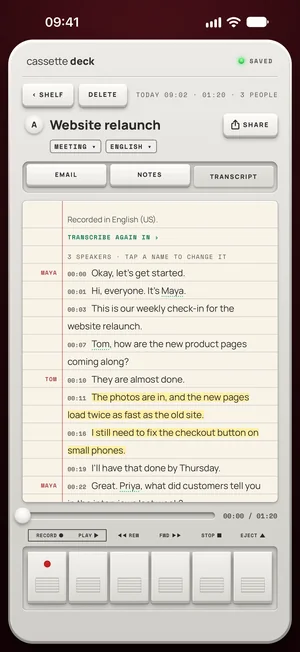
Open the tape and choose TRANSCRIPT. Every line starts with the time it was said on the tape.
- Tap a line to go there. Then press PLAY and hear it for yourself. This is the quickest way to settle what someone really said.
- Who said it. On iPhone, iPad and Mac, the transcript is split by speaker, worked out on the device. A voice gets a name when the meeting makes it clear, like "Hi, I'm Tom", and is Speaker 1, Speaker 2 and so on otherwise. Tap a speaker's name to change it. On Android the transcript isn't split by speaker yet.
- Copy what you need. Press and drag to select across as many lines as you like, then copy.
Meetings on a call: record the call on a Mac
On a Mac, turn the switch on the deck to CALL. Cassette then records what your Mac plays, which is the other people on Zoom, Google Meet or Microsoft Teams, together with your microphone. No bot joins and no one has to turn anything on in the call app. macOS asks once to allow screen and system audio recording, and this needs macOS 15.2 or later.
On a phone, take the call on speaker or on a laptop, with the phone on the desk next to it.
Already have a recording? Transcribe the file
On iPhone, iPad and Mac, Cassette can bring in a meeting someone else recorded, or one you made in another app. Share the file to Cassette on iPhone or iPad, press ADD FILE on the Shelf, or drag it onto the Shelf on a Mac. It becomes a tape with a transcript and notes, and the original file isn't changed.
Cassette reads M4A, MP3, WAV, AAC, FLAC, Opus and the sound in MP4. On a Mac, drag a long recording from Voice Memos to the Desktop first, then onto the Shelf.
Get the transcript out
With the transcript open, press SHARE. On iPhone the phone's share sheet opens with Copy and Cassette's own rows: Save as PDF, Save as Word, Save as Markdown and Share Audio. On Android, SHARE offers PDF, Word, Markdown and the audio too.
To keep transcripts with the rest of your notes, send them to Notion, OneNote, Evernote or Google Keep, to Apple Notes on iPhone, iPad and Mac, or to Samsung Notes on a Samsung phone.
Tips for a cleaner transcript
- Distance matters most. Keep the phone close to the people talking and off a table people tap or type on.
- One person at a time. Crosstalk is hard for any transcript, written by a person or a machine.
- Use the right language. On iPhone, pick the language people speak in Profile, under Languages you speak. If a tape was heard in the wrong one, open it and choose TRANSCRIBE AGAIN IN.
Before you record
Ask first. Whoever you are recording should know about it, some places require everyone's consent, and it is the decent thing to do.
Questions
Is there a free meeting transcription app?
Cassette records for free with no time limit. A tape under 3 minutes is transcribed free, and 2 longer tapes a month are too. Most meetings are longer, and Premium covers every tape after that. Zoom, Teams and Meet include transcripts on the plans their makers list.
Do I need a meeting transcription device?
Not for most meetings. A phone in the middle of the table, close to the people talking, records a small room well, and Cassette transcribes it on the phone. For a big room or a long table, move the phone nearer whoever talks most, or record a call on a Mac with the CALL switch.
Does the transcript work without the internet?
On Android, the phone writes the transcript itself, with no audio sent anywhere for it. The notes model arrives over Wi-Fi once after you install it on a phone with 8 GB of memory or more, and then the notes need no connection either. On iPhone, the transcript is written on the device in the languages it supports there, once that language's speech model is downloaded. Otherwise Apple's servers write it. To keep everything on the iPhone, turn on On-device only in your Cassette profile.
Do I get notes as well as the transcript?
Yes, on an iPhone with Apple Intelligence on iOS 26 or later, and on an Android phone with 8 GB of memory or more. A meeting in English gets a summary, what was decided, the actions with owners, and a draft follow-up email. A meeting in another language gets simpler notes, without meeting sections such as what was decided. Other phones get the recording, the transcript and a few lines heard clearly. A tape in another language also gets a short summary and key points.
Will people in the meeting know they are being recorded?
Nothing joins the call or sends an invite, so tell people yourself before you press RECORD.
Keep reading
- TranscriptionWhere this fits in Cassette.
- MeetingsWhere this fits in Cassette.
- How to get voice notes into NotionRecord on your phone and get the transcript and notes into a Notion page. Steps for Notion's AI Meeting Notes and for Cassette on iPhone, Android and Mac.
- How to turn audio into textTurn an audio file into text: Word's Transcribe for MP3, M4A and WAV files, or Cassette on iPhone, iPad and Mac for a transcript and notes.
- An interview transcription app that writes the notes tooRecord an interview on your phone and get a transcript plus notes with each question and answer, quotes and follow-ups. Built-in apps and Cassette.
- How to choose a meeting notes appHow to pick a meeting notes app: what your phone and your call app already do, eight things that matter for meetings, and how Cassette does.
- How to transcribe voice memos to text on iPhone or AndroidTurn a voice memo into text with the tools already on your phone. Steps for iPhone, Mac, Pixel and Samsung, and how Cassette adds a to-do list.
Sources
- Zoom Support: Using audio transcription for cloud recordings: https://support.zoom.com/hc/en/article?id=zm_kb&sysparm_article=KB0064927
- Microsoft Support: Start, stop, and download live transcripts in Microsoft Teams meetings: https://support.microsoft.com/en-us/teams/meetings/start-stop-and-download-live-transcripts-in-microsoft-teams-meetings
- Google Meet Help: Use Transcripts with Google Meet: https://support.google.com/meet/answer/12849897?hl=en
Free to download. Recording is free and unlimited, and tapes under 3 minutes get their transcript and notes free.