
How to get voice notes into Notion
Written by the team that builds Cassette, so we are not neutral about it. Updated 21 November 2026.
If your workspace is on Notion's Business or Enterprise plan, Notion's own AI Meeting Notes can record through your phone's microphone and write the notes in the page. Without that plan, record in an app that writes the transcript and notes, then send them over. In Cassette you press RECORD, then STOP, and the SEND TO line at the foot of the notes sends them to Notion. On Android that opens Notion's own save screen with the notes filled in. On iPhone you can copy the notes and paste them into a page, and on a computer you can import Cassette's Markdown file.


First, check what Notion does by itself
Notion has its own recorder. Its help page on AI Meeting Notes says what it does and where:
- It needs the right plan. Notion says you must be on its Business or Enterprise plan, or an eligible mobile subscription that includes Notion AI.
- On a phone, it hears the room. The Notion app records through your phone's microphone. Notion says it can't capture sound playing from the phone itself, like other people's voices on a video call.
- It needs a connection. Notion says AI Meeting Notes isn't supported while offline.
- To start one, type /meet on a page in the desktop app, or use the Meeting notes tab in the sidebar.
If your team already pays for that plan, try it first. If you don't, or you want the recording on your phone for a class, a doctor's visit or a voice memo, record somewhere else and send the notes to Notion.
Record the voice note with Cassette
Cassette is a recorder styled as a tape deck, for iPhone, iPad, Mac and Android. It writes the transcript and the notes after you stop.
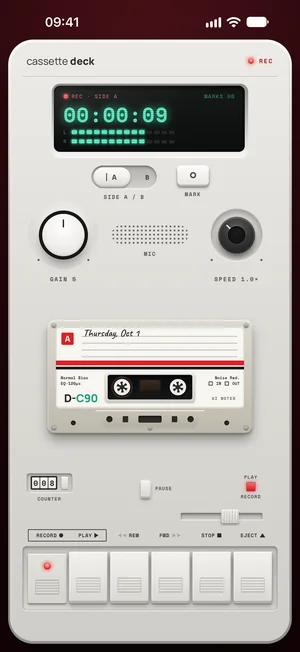
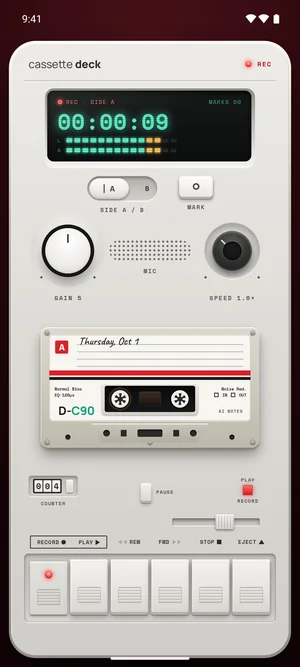
- Press RECORD. The tape keeps rolling when your screen locks.
- Tap MARK at the moments that matter, so you can find them again.
- Press STOP. Cassette writes the transcript, then the notes: a summary, key points, and what was decided and who does what when it was a meeting.
On an iPhone or iPad without Apple Intelligence or on a version before 26, or an Android phone with less than 8 GB of memory, you get the recording, the transcript and a few lines heard clearly. A tape in English gets no summary there. A tape in another language gets a short summary and key points. You can still send the transcript to Notion.
Pick Notion once on the SEND TO line
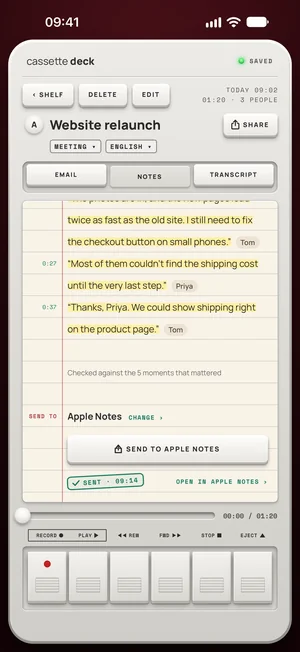
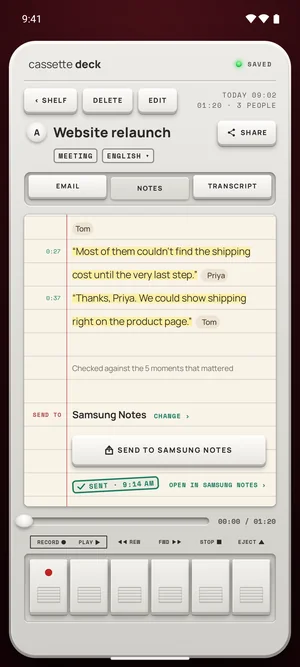
Open the tape and scroll to the foot of its notes. The SEND TO line is there, on the notes and on the transcript.
- Tap CHOOSE the first time, or CHANGE if another app is picked.
- Pick Notion under "Where do your notes live?" On a phone the list shows only the notes apps you have, so install Notion first. On a Mac it lists all five.
- From then on every tape shows a SEND TO NOTION key on its notes, and SEND TRANSCRIPT TO NOTION on its transcript.
Free to download. Recording is free and unlimited, and tapes under 3 minutes get their transcript and notes free.
Send it on Android
Press SEND TO NOTION. Notion opens on its own save screen with the notes filled in: the title, then the date, length and who was there, then the notes in their sections, with the to-dos grouped by person. Notion's help page on its share screen says you then choose the workspace and the page or database to add it to, and tap Save.
Cassette stamps the line SENT with the time when Notion opens. For the full transcript, open the TRANSCRIPT tab and press SEND TRANSCRIPT TO NOTION. Each speaker's turn comes as one paragraph, under their name and time.
Send it on iPhone and iPad
On iPhone and iPad, SEND TO NOTION opens the share sheet with the notes written out for a notes app. Notion's help page on its share sheet only talks about web pages, photos and files. If Notion isn't in the sheet, or it saves nothing, copying is the sure way:
- Press SHARE at the top of the tape, with the NOTES or TRANSCRIPT tab open.
- Choose Copy in the share sheet.
- Open the Notion page and paste.
On a Mac or computer: import the Markdown file
Notion reads Markdown, and Cassette writes it. In the share sheet from SHARE, choose Save as Markdown to get one file with the tape's notes and transcript. It is in Cassette on iPhone, iPad, Mac and Android.
Then, on a computer, open Notion's desktop app or Notion on the web. Its import page says to go to Settings, then Import, or type / on a page and search for the importer. Notion says imports work on desktop and web, not on its mobile app yet.
Want a file for every tape without asking? Turn on Save notes to Files in your Cassette profile, on iPhone, iPad and Android (not on a Mac). It saves a Markdown file per tape. On iPhone and iPad they go in Files, On My iPhone (or iPad), Cassette, Notes. On Android they go in your phone's Documents, Cassette folder.
Tips for notes that read well in Notion
- Say names and days out loud. Cassette lists who does what by person, and a day only when someone said one.
- Name the tape before you send it. The title is the first line Notion sees.
- Send one tape at a time. Notion gets each tape when you press the key. Cassette doesn't send tapes to Notion by itself.
- Fix a word first. Notes go out as they are on the tape, so press EDIT on the NOTES tab to correct a name before you send.
Before you record
Ask first. Whoever you are recording should know about it, some places require everyone's consent, and it is the decent thing to do.
Questions
Can Notion record voice notes by itself?
Yes, with AI Meeting Notes, on Notion's Business or Enterprise plan or an eligible mobile subscription that includes Notion AI. On a phone it records through the microphone, it can't capture call audio playing from the phone, and it doesn't work offline.
Does Cassette send to Notion automatically?
No. You press SEND TO NOTION on each tape. Cassette can send every tape by itself only to OneNote, once you sign in, and on iPhone, iPad and Mac also to Apple Notes once its shortcut is set up.
Can I send the transcript, not just the notes?
Yes. Open the TRANSCRIPT tab and press SEND TRANSCRIPT TO NOTION, or use SHARE and Copy. The Markdown file from Save as Markdown has both the notes and the transcript.
Does it work without Wi-Fi?
Recording works in airplane mode. On iPhone, the transcript is written on the device in the languages it supports there, once that language's speech model is downloaded; otherwise Apple's servers write it. On Android, the notes model arrives over Wi-Fi once after you install, on a phone with 8 GB of memory or more. Notion needs a connection to save the notes to your workspace.
Is Cassette free?
Recording is free and unlimited. A tape under 3 minutes gets its transcript and notes for free. Longer tapes count toward the 2 free tapes a month, and Premium covers every tape after that.
Keep reading
- All featuresWhere this fits in Cassette.
- How to choose a meeting notes appHow to pick a meeting notes app: what your phone and your call app already do, eight things that matter for meetings, and how Cassette does.
- How to transcribe voice memos to text on iPhone or AndroidTurn a voice memo into text with the tools already on your phone. Steps for iPhone, Mac, Pixel and Samsung, and how Cassette adds a to-do list.
- How to take notes in a meeting using AIUse AI to take meeting notes on Zoom, Teams, Google Meet or in a room: what to set up, what to say out loud, and how to check the notes afterwards.
- How to record and transcribe a meeting, with no bot in the callRecord and transcribe a meeting on iPhone, Android or Mac, in a room or on a call: what Zoom, Teams and Meet do, and how Cassette does it with no bot.
Sources
- Notion Help: Take AI meeting notes in Notion: https://www.notion.com/help/ai-meeting-notes
- Notion Help: Save web pages with Notion Web Clipper: https://www.notion.com/help/web-clipper
- Notion Help: Import data into Notion: https://www.notion.com/help/import-data-into-notion
Free to download. Recording is free and unlimited, and tapes under 3 minutes get their transcript and notes free.